
Hey. It's already September 2017. The year's almost gone... and so is another birthday.
This time, as the title says, let's get PIT into the palm of our hand.
On a job site, there are times you just want pits to be easier to manage. I don't know how everyone else does it.
I want to share the way I manage them.
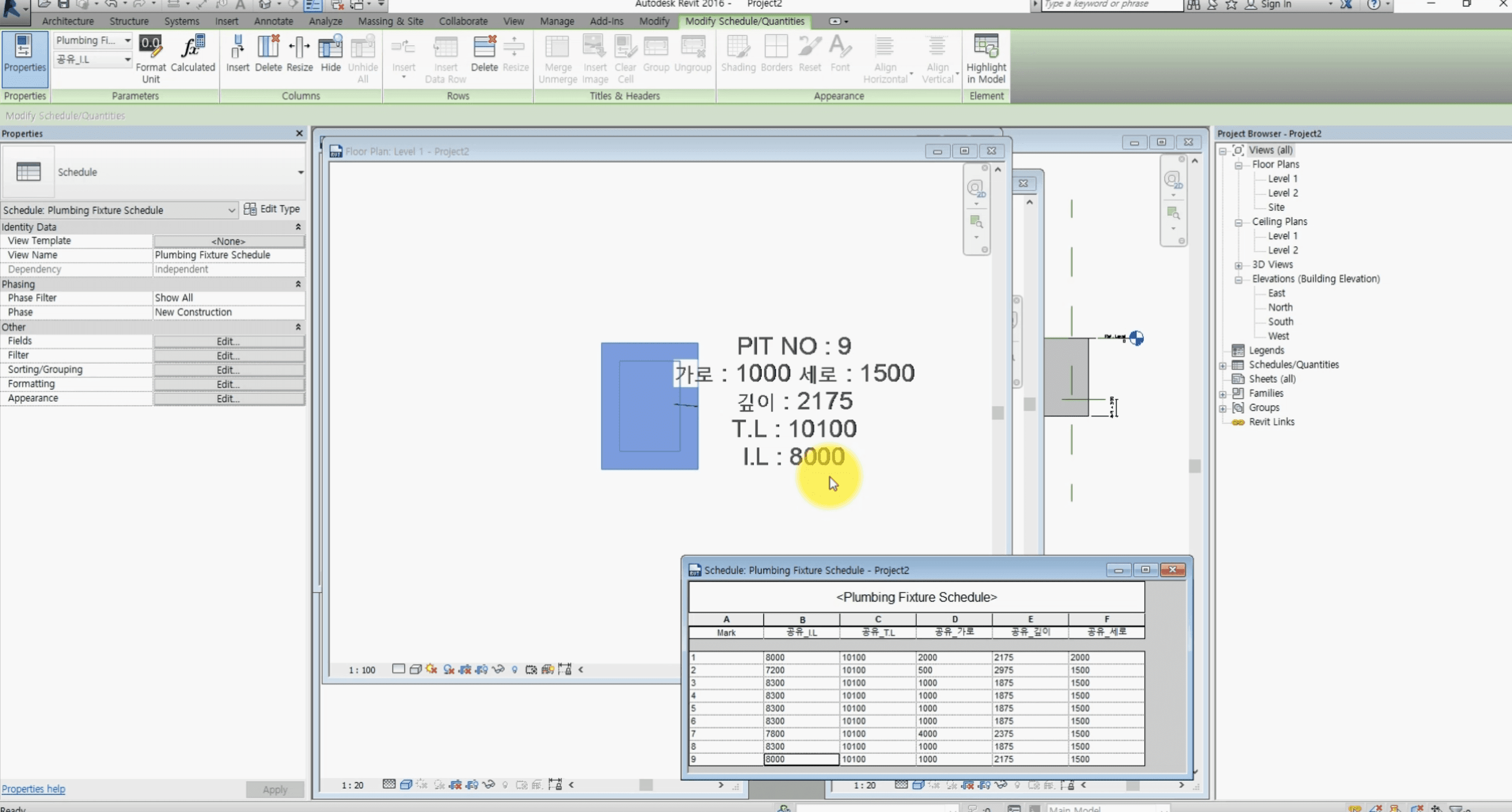
I will make a family that is easy to manage, apply shared parameters, connect it to a schedule, and tag it as well.
(Note: you can download the sample files at the bottom.)
What I want is to use shared parameters so that the PIT size, schedule, and tag stay linked.
It ends up like this.
The information I want to manage is:
-
The PIT Mark value
-
Width / length / depth
-
Top Level (T.L) / Invert Level (I.L)
Let's make the family first.
I had a video from an older study session, so I edited that. Unfortunately the sound was not recorded.
- Making the PIT family
The PIT family is done.
Now let's apply shared parameters.
- Applying shared parameters
Top Level is given on site. Think of it as the reference level for that floor.
Here, Top Level and Invert Level both come from site, so I built the family so the model updates when those two values are entered.
Enter Shared_T.L and Shared_I.L, and Shared_Depth is calculated with this formula:
[Shared_Depth = Shared_T.L - Shared_I.L + Offset fr I.L]
If you want a different driver, you can adapt this.
The reason for shared parameters is so the project file can schedule and tag them.
Now let's make a schedule.
- Schedule
Because the schedule uses shared parameters, changing a value in the schedule updates the model, and changing the model updates the schedule.
Now tagging.
- Tagging
Now the tag, the schedule, and the model stay linked and update on their own.
Managing pits this way has several advantages.
-
No mismatch between the tag, the schedule, and the model size.
-
Revisions are very, very fast.
-
You can produce an accurate schedule whenever you need one.
Closing.
If you adapt this, you can use it for more than pits.
Let's go!
Update: I am uploading sample files. Use them freely if you want to study.
Sample files: Download
#BIM, #HOWBIM, #PIT, #schedule, #shared parameters, #tag, #PIT modeling